How to use Google My Maps?
How to use a Google My Maps and never lose the routes you would have saved on our site!
How to use Google My Maps?
Why use our Google My Maps?
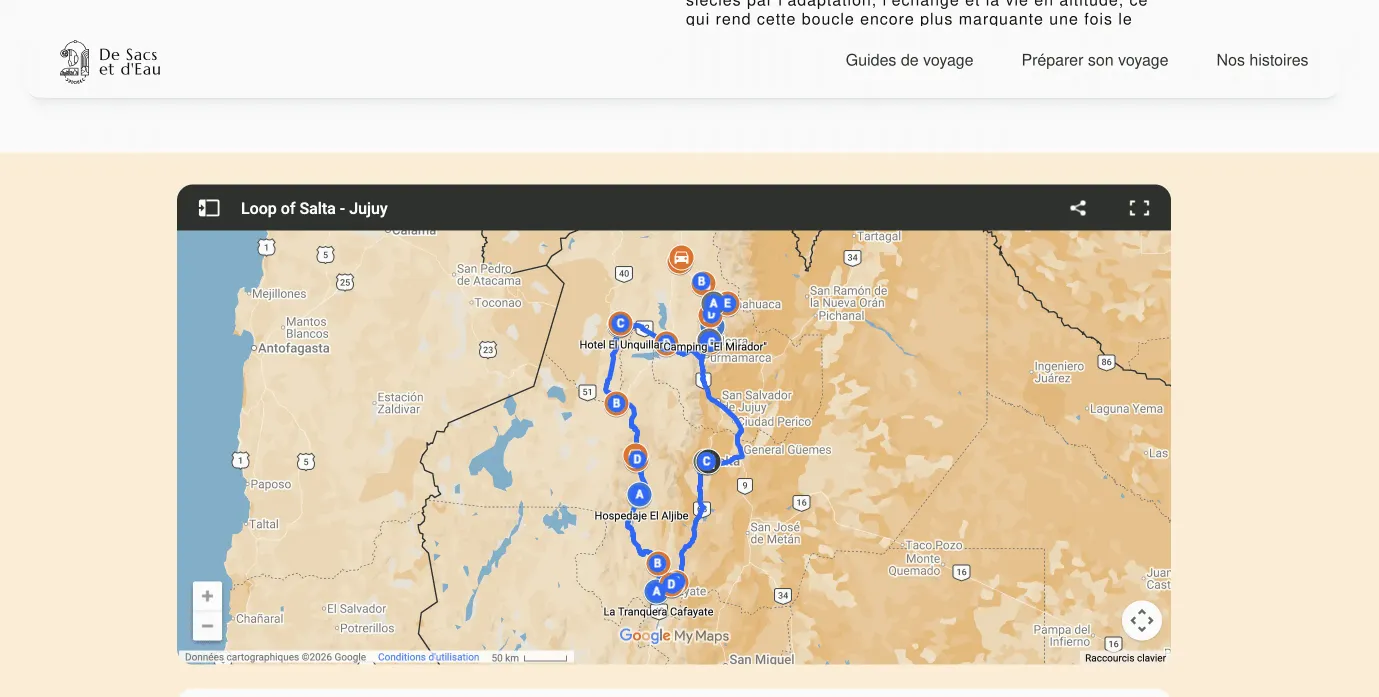
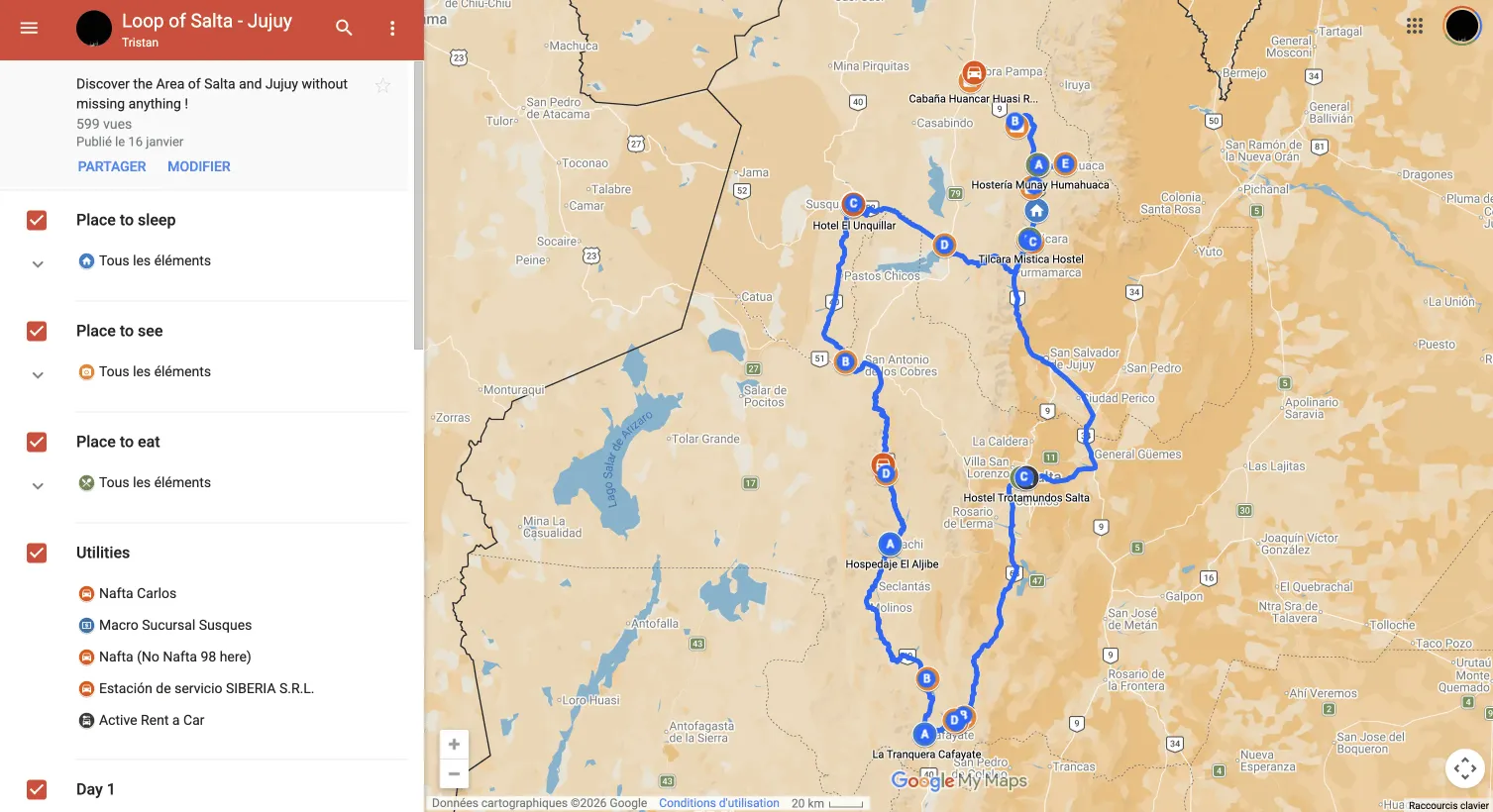
A My Maps card is not just an image or a link. It is a living tool designed to accompany you on the road.
Specifically, our maps allow you to:
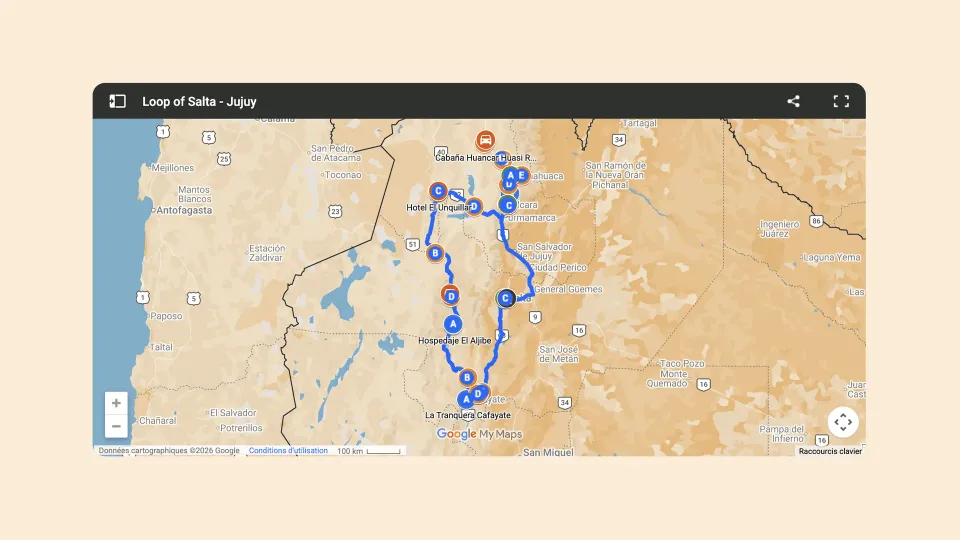
When you are on an article Of Bags and Water, you will find a link or an embedded map.
Simply click on the Google My Maps map.
It then opens in your browser or directly in Google Maps (depending on your device).
No specific sign-up is required, as long as you are logged into your Google account.
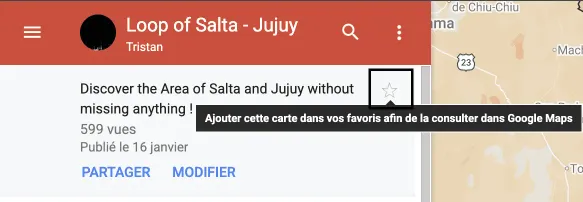
Step 2: save the map (the key point)
This is the most important step, and also the one that many forget.
Once the map is open:
Make sure you are logged into your Google account
Click on “Save” or “Add to my maps” (depending on the interface)
The map is now linked to your Google account
From there, you no longer need to go back through our site to find it.
Step 3: find the map in Google Maps (mobile)
This is where the magic happens.
On the Google Maps app (Android or iOS):
Open Google Maps
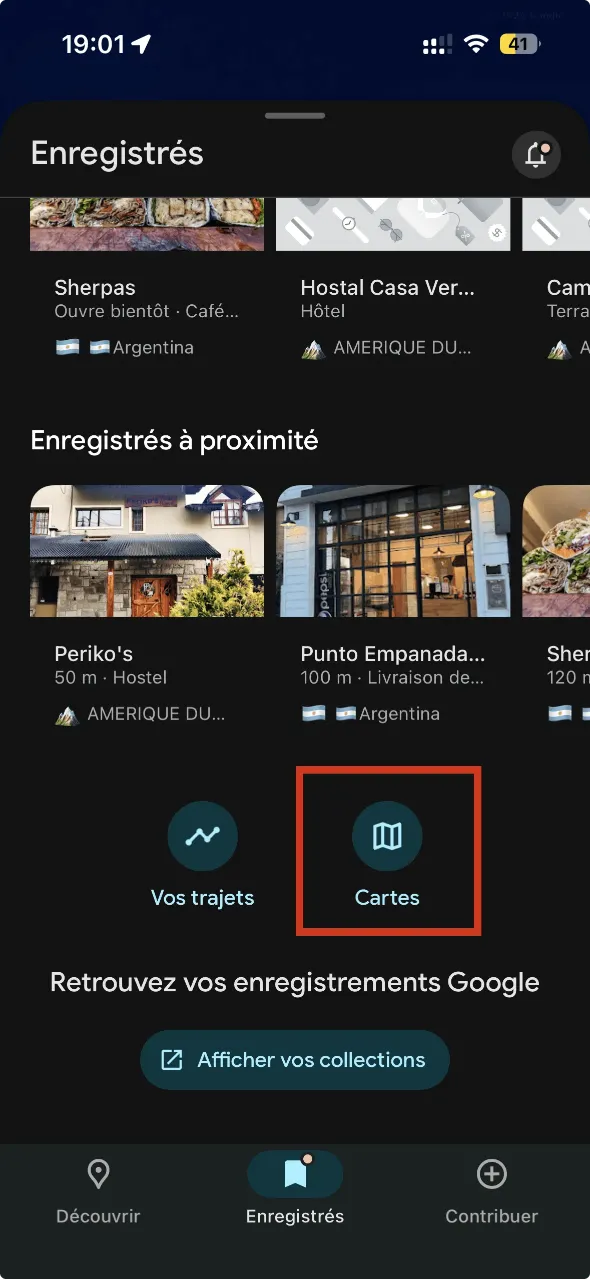
On the home screen, tap on “Saved”
Scroll to the bottom of the screen
Click on “Maps”
You will find here all the My Maps that you have saved, including those of De Sacs et d’Eau.
You can access them at any time, even while traveling.
Can these cards be used offline?
⚠️ Important point:
The My Maps cards are not fully usable offline like a regular Google Maps card.
Our advice:
Download the relevant area as a Google Maps offline map
Use My Maps for overall visualization and key points
Combine both for optimal navigation